
The very first thing that you need to ask is whether or not you are using Standards Based Grading or Traditional Grading. Based on the report card or progress report setup, the location in which you enter the comments could vary.
In PowerTeacher Gradebook, you can consider there to be:
- A Traditional Grading system where a grade is assigned to a single class and there is the opportunity to write one comment per class, or
- Standards Based Grading (Example: Common Core) where we assign standards that are specifically designed to hold comments OR you can comment on specific standards. In a Standards Based Grading setup, you can have an infinite number of commenting areas depending on the standards used.
This article will direct teachers to enter Traditional Grading Comments only.
First, navigate to A+ Grading > Comment Verification screen.

From the Comment Verification screen (as shown above), a teacher may enter comments for the grading term for all, or some, students. Review expectations with your administrative teams as report cards may limit the number of characters or the type of comments to be used.
**Please note that teacher comments are saved into historical grades (stored grades) in PowerSchool and may be viewed by parents and students who have access to the public portal in PowerSchool once saved in the gradebook.
Open Comments vs. Comment Bank
Depending upon how your PowerSchool server has been setup, teachers typically have one of two options to create term specific Teacher Comments: Open Comments or Comment Bank.
- Open Comments – freely written comments, typically limited by character count to fit onto the report card.
- Comment Bank – a drop down menu of options, setup by the Admin team in PowerSchool, typically limited by character count to fit onto the report card.
To create an Open Comment:
- Navigate to the A+ Grading >Comment Verification screen and select the proper grading term which is coming to an end (ex. S1, Q1, T1).
- Select (or click on) the final grade percentage or letter grade to open the Score Inspector Window in the Traditional Grade screen or the Comment Verification screen.
- At the bottom of the Score Inspector is an large, white box where Open Comments may be typed. The following screenshot details this view.
- Type carefully and proofread thoroughly since there are no grammatical or spelling hints offered.
- Save when finished.

To create a comment using the Comment Bank:
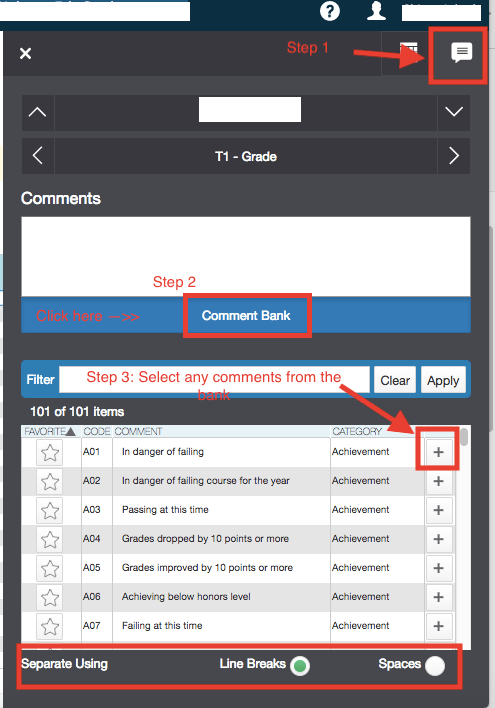
Within the same Comment Verification screen, and on the Score Inspector noted above, there is an option for the Comment Bank if one has been setup in PowerSchool.
- Select the icon at the top of the screen that resembles a dialogue box shown Step 1 of the screenshot below.
- Select the Comment Bank link as shown in Step 2 below.
- Then you may select the “+” sign to add comments to the comment box for each student using the list that follows.
- Keep in mind the number of characters used and any Admin expectations for the content of these comments.
- Proofread carefully and update them as needed before grades are submitted.
- You may move through the student list by selecting the down arrow next to the student’s name near the top of the screen for each selected class.
- Save when finished.
Remember, if Parent/Student Portal is open, both parents and students with access will be able to view the grades and comments once saved.
Once grades are permanently stored at the end of the term, report cards may be run to include the teacher comments. Any changes to the comments will require a new grade storage.